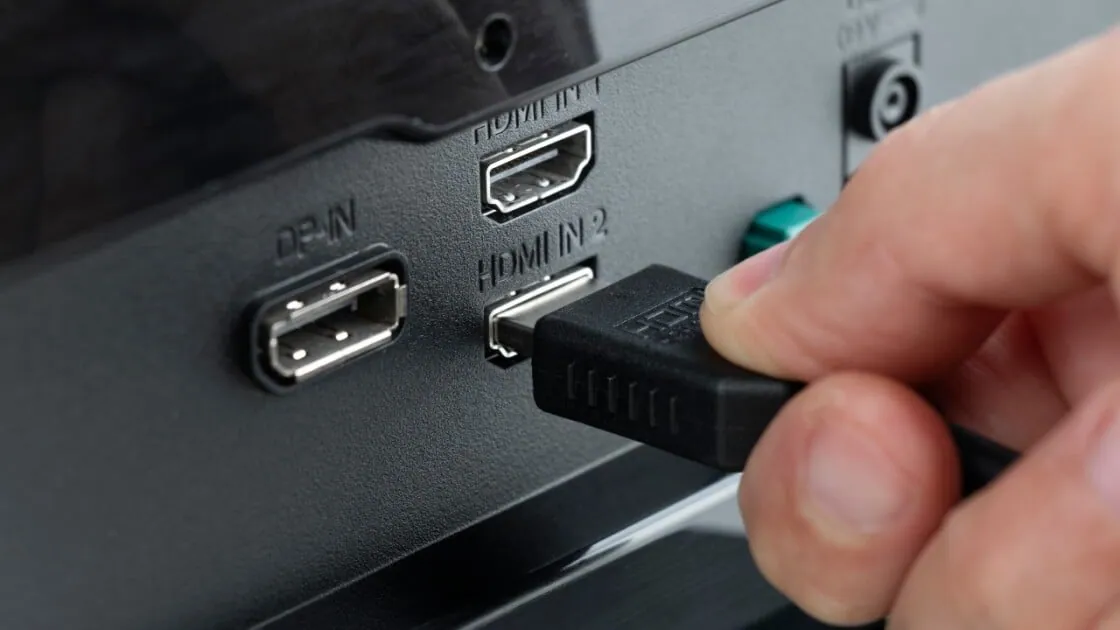
Most monitors ship with both ports and one cable, and the box rarely says which to use. The short answer: DisplayPort for a PC, HDMI for everything that is not a PC. The longer answer depends on the refresh rate you paid for and what else shares the screen.
The difference: two connectors built for two different rooms
HDMI was designed for the living room: video, audio and control signals between a television and the boxes under it, which is why every TV, console and set-top box has one. DisplayPort (DP) was designed by VESA for the computer desk, a royalty-free standard built around packetized data that can be split, chained and tunneled over USB-C. A PC monitor sits much closer to DisplayPort's job.
Bandwidth: the headline number that rarely decides anything
The HDMI 2.1 specification carries 48 Gbps. The HDMI 2.2 specification, published in 2025, raises that to 96 Gbps, with the first devices expected in 2027. DisplayPort 1.4 carries 32.4 Gbps, and DisplayPort 2.1 at UHBR20 carries 80 Gbps. USB4 v2, which can tunnel DisplayPort, offers 80 Gbps symmetric or 120 Gbps asymmetric when most of the traffic is heading toward a display.
Those numbers matter less than they look, because both standards support Display Stream Compression (DSC), a visually lossless compression that lets a 32.4 Gbps DisplayPort 1.4 link drive 4K at refresh rates the raw link could not. The real limit is what the graphics card and the monitor's scaler implement, not the ceiling in the specification. A DisplayPort 2.1 port may run a lower bit-rate tier than UHBR20; an HDMI 2.1 port may enable only part of the feature set. Read the monitor's spec sheet for the mode you intend to run and note which port it is listed against.
| Feature | HDMI | DisplayPort |
|---|---|---|
| Maximum bandwidth | 48 Gbps (HDMI 2.1 specification); 96 Gbps (HDMI 2.2 specification, devices from 2027) | 32.4 Gbps (DisplayPort 1.4); 80 Gbps (DisplayPort 2.1 UHBR20) |
| 4K and 1440p at high refresh | 4K at high refresh on HDMI 2.1 ports with DSC; monitors often cap this input lower | 4K at high refresh, 1440p at the monitor's top refresh, with DSC; the port the maximum is quoted for |
| Variable refresh rate | HDMI VRR from the 2.1 specification; FreeSync over HDMI on some monitors | Adaptive-Sync in the standard; G-Sync and FreeSync were built on it |
| Audio return (ARC / eARC) | Yes, to a soundbar or receiver | No return channel |
| Daisy-chain (MST) | Not supported | Yes, several monitors from one output |
| Typical use | TVs, consoles, projectors | Desktop PCs, gaming monitors, docks, USB-C laptops |
Where DisplayPort wins for gaming PCs
Variable refresh rate. Adaptive-Sync is part of the DisplayPort standard, and both G-Sync and FreeSync were built on it. HDMI added VRR in the 2.1 specification, but if a monitor is sold as G-Sync Compatible or FreeSync Premium, DisplayPort is the connection those certifications were tested on.
High refresh at high resolution. Running 1440p at the monitor's top refresh rate, or 4K at high refresh, is a routine DisplayPort task, with DSC engaged when needed. Many monitors with both ports run their highest refresh rate only on DisplayPort and cap HDMI lower, because the HDMI receiver inside is a lower-tier part. DSC has also shipped on the DisplayPort side for longer, so a mode that needs compression is more likely to work first time there.
Daisy-chaining. DisplayPort Multi-Stream Transport (MST) lets one cable from the PC feed two or three monitors chained through each other. HDMI has no equivalent. For a simulator rig or a trading desk, that is one GPU output instead of three.
Where HDMI wins
HDMI is the right choice when the monitor doubles as a screen for a console, a streaming box or a disc player. Audio Return Channel (ARC and eARC) sends sound back from a TV to a soundbar; DisplayPort has no return channel. HDMI CEC lets one remote control several devices. Neither matters on a PC monitor, and both are essential in a living room. HDMI is also the safer bet for a conference-room display, because every projector has one. On an office monitor at 1080p and a standard refresh rate, the ports are interchangeable.
USB-C blurs the line
Many laptops now have no full-size video port. USB-C with DisplayPort Alt Mode, and USB4 with DisplayPort tunneling, carry the DisplayPort signal over the USB-C connector, often with charging on the same cable. When the monitor has a USB-C input, that single cable is usually the right choice for a laptop, and it is DisplayPort underneath. Most USB-C to HDMI cables are DisplayPort with a converter chip in the plug, which is why some lose VRR.
A decision list: which is better for your setup
- Desktop PC, single monitor, any refresh rate: DisplayPort.
- Gaming at 1440p or 4K, or any VRR monitor: DisplayPort.
- Two or three monitors from one output: DisplayPort with MST.
- Monitor shared with a console or streaming box: HDMI for those devices, DisplayPort for the PC.
- Laptop with USB-C only: USB-C to the monitor, or USB-C to DisplayPort.
- Projector, TV or soundbar in the chain: HDMI.
What to write on a specification
For buyers writing a specification, the connector is only half the line item. For HDMI, do not specify by version number; HDMI Licensing does not permit cables to be labeled that way. Specify the certified category: an Ultra High Speed HDMI® Cable for 48 Gbps links, or an Ultra96 HDMI® Cable once 96 Gbps devices ship. For DisplayPort, specify the bit-rate tier (UHBR20 for 80 Gbps) and the length, because full-rate DisplayPort over passive copper is length-sensitive. For USB-C, state that DisplayPort Alt Mode or USB4 is required, since a USB 2.0 cable in a USB-C body carries no video.
Tonetron (Taitron) has been an HDMI Adopter for 20 years and builds HDMI, DisplayPort, USB-C and USB4 cables in a 50,000 ㎡ self-owned, ISO 9001 certified factory; its USB4 cable PF587A-0080 passed USB-IF certification testing (TID 6801), and its USB-IF membership has since lapsed. Whichever port you choose, specify the category, not the version, and the link will hold the rate the monitor was bought for.