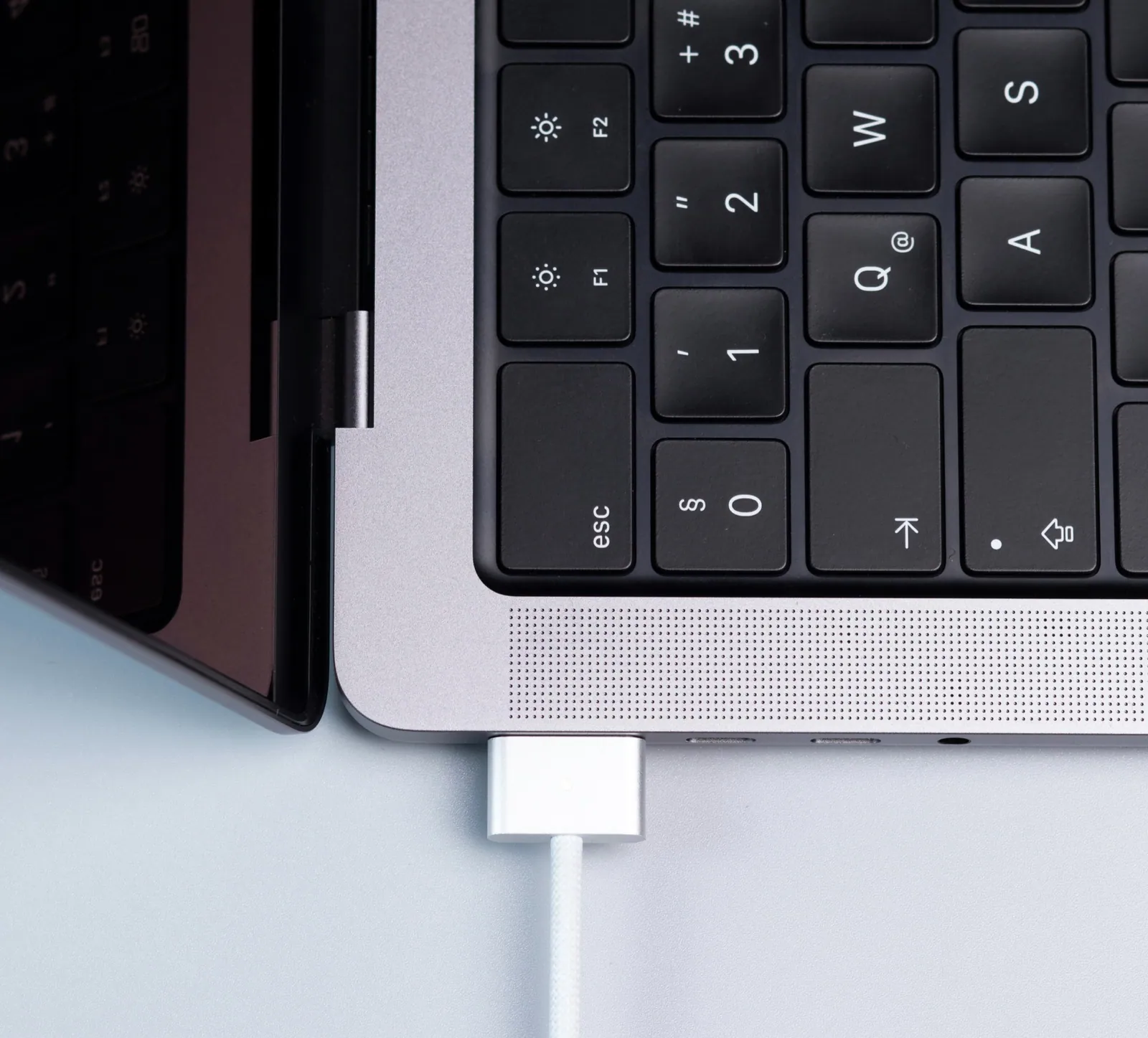
USB-C cables run from 480 Mbit/s and 5 watts to 120 Gbit/s and 240 watts, and almost none of them say which on the jacket. WhatCable, a free macOS app, closes part of that gap by reading each USB-C port on a Mac and showing the maximum data rate and the supported USB Power Delivery profiles. It is a useful tool, and a compact lesson in what software can and cannot establish about a cable.
What the app reports
WhatCable runs on Macs with USB-C ports — MacBook Pro, MacBook Air, MacBook Neo, Mac mini and iMac — and displays, per port, the maximum data rate of the current connection and the PD profiles available through it. The free version covers the basics; a Pro version is a one-time £9.99, around $13. Notebookcheck found the readings correct and helpful in most cases, with one exception more instructive than the successes.
The exception explains the whole tool
Connected to a non-Thunderbolt device, the app reported a Thunderbolt 3 cable as USB 2.0. That is not really a bug. The app reports the link, and a link settles at the lowest common capability of host port, cable and peripheral. A Thunderbolt-class cable in a port that cannot do Thunderbolt genuinely is a USB 2.0 connection at that moment. The reading was accurate about the connection and misleading about the cable, and telling those apart is the whole skill of using a tool like this.
An eMarker is a declaration, not a measurement
Software on the host cannot physically probe copper. What it can do is read the cable's eMarker — a chip inside the connector that broadcasts the cable's rated current and speed over the CC pin. Every USB-C cable rated above 3 A, and every cable at 5 Gbps or faster, must carry one. The host asks, the chip answers, the app displays the answer. It is a self-declaration held in firmware, and nothing in the read-out proves the wire behind the chip matches what the chip says.
Cables with no eMarker go half dark
Inexpensive cables without an eMarker still show power information, because a cable that declares nothing is limited to 3 A by the specification and the host assumes that default. What the app cannot show for them is a data rate. That absence is itself a finding. A cable sold as 100 W or 240 W that produces no eMarker data cannot negotiate above 3 A, so a charger will quietly cap it at 60 W. If your laptop charges slowly and the app reports no eMarker, you have found the cause.
What a software read-out can and cannot establish
| Question | Can a free app answer it? | Why |
|---|---|---|
| Does this cable have an eMarker? | Yes | Read directly over the CC pin |
| What current and speed does it claim? | Yes | The eMarker broadcasts both values |
| What is this link actually running at? | Yes | Reported per port by the host |
| Is the claim true of the copper? | No | Firmware declares; it does not measure |
| Is the shield properly terminated? | No | Needs a continuity or impedance test |
| Will it still pass 240 W in a year? | No | Needs load and mechanical life testing |
Where a free read-out is enough
For sorting a drawer, it is more than enough. Three questions get answered in seconds per cable: is there an eMarker, what does it claim, and what is this port giving me right now. That covers the bulk of everyday USB-C confusion with no hardware purchase. Write what the app reports onto a tape flag on each cable and the problem stops recurring.
Where it is not
For buying at volume, a declaration is a starting point rather than evidence. An eMarker can be programmed with whatever values a manufacturer chooses, and nothing physical enforces them. If you are specifying cables rather than sorting them, ask the supplier what was measured — high-current load, shield continuity, insertion loss — and on how many samples. A firmware field and a test report are different kinds of claim, and only one was produced by putting a cable on an instrument.